Adding a Public Key in the Merchant Portal
This walks through registering a public key for signed requests in the Merchant Portal, from opening Settings to copying your new APP-TOKEN. It picks up after you've generated your ES256 (P-256) key pair — see the "Setting up signed requests" section of the API documentation for how to do that.
-
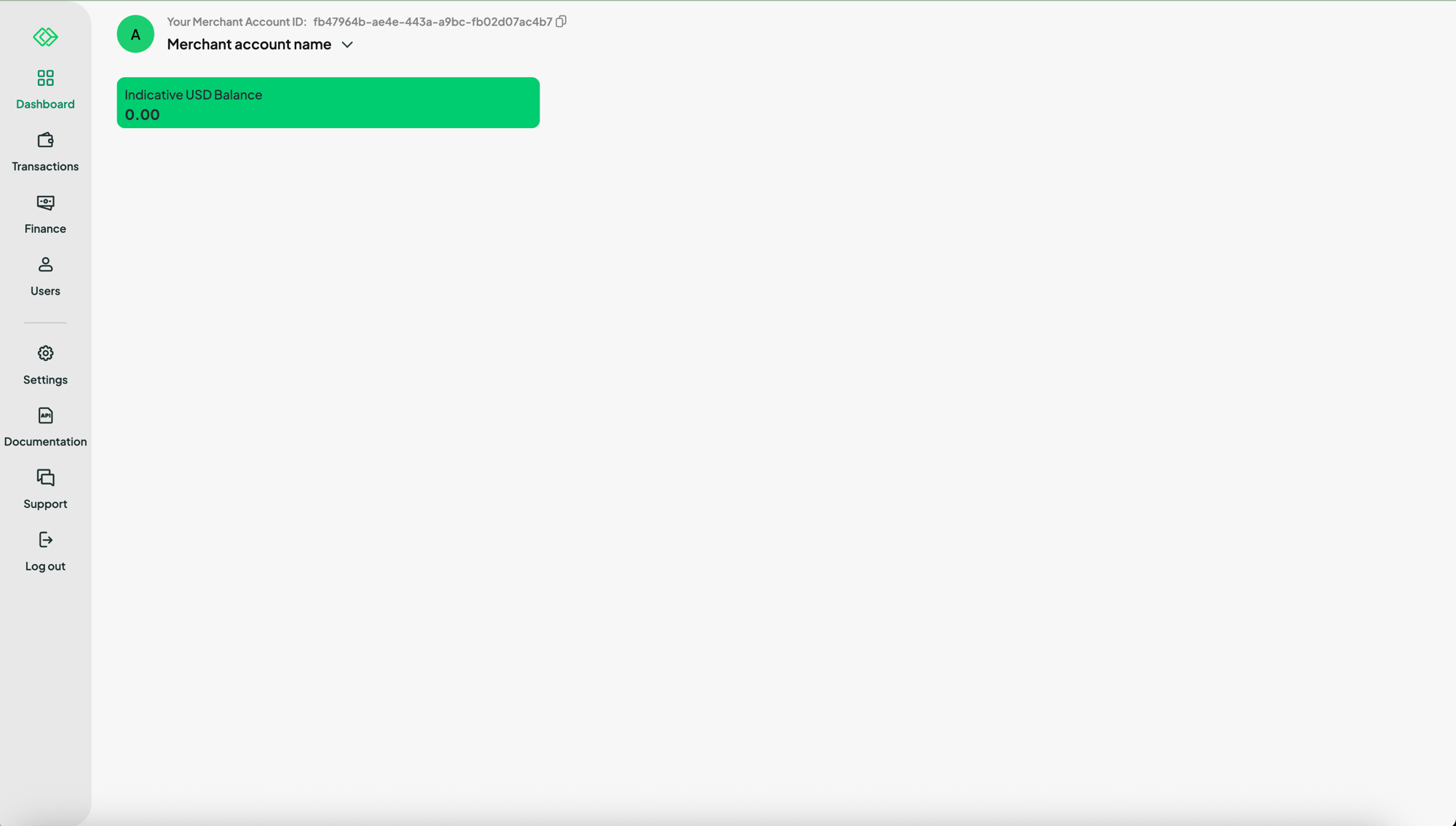
Open Settings. After signing in to the Merchant Portal, the left-hand navigation includes a Settings item. Viewer and Support roles don't see it at all. Admin, Finance, and Refunds Specialist roles do — though as covered in the next step, only Admin can see the API Keys tab inside it.
-
Go to the API Keys tab. For the Admin role, Settings opens on the API Keys tab by default — this is where keys are created and managed. Finance and Refunds Specialist only see the Security tab here (to set up two-factor authentication, since they process refunds); they don't have access to API Keys. Click + Create key.
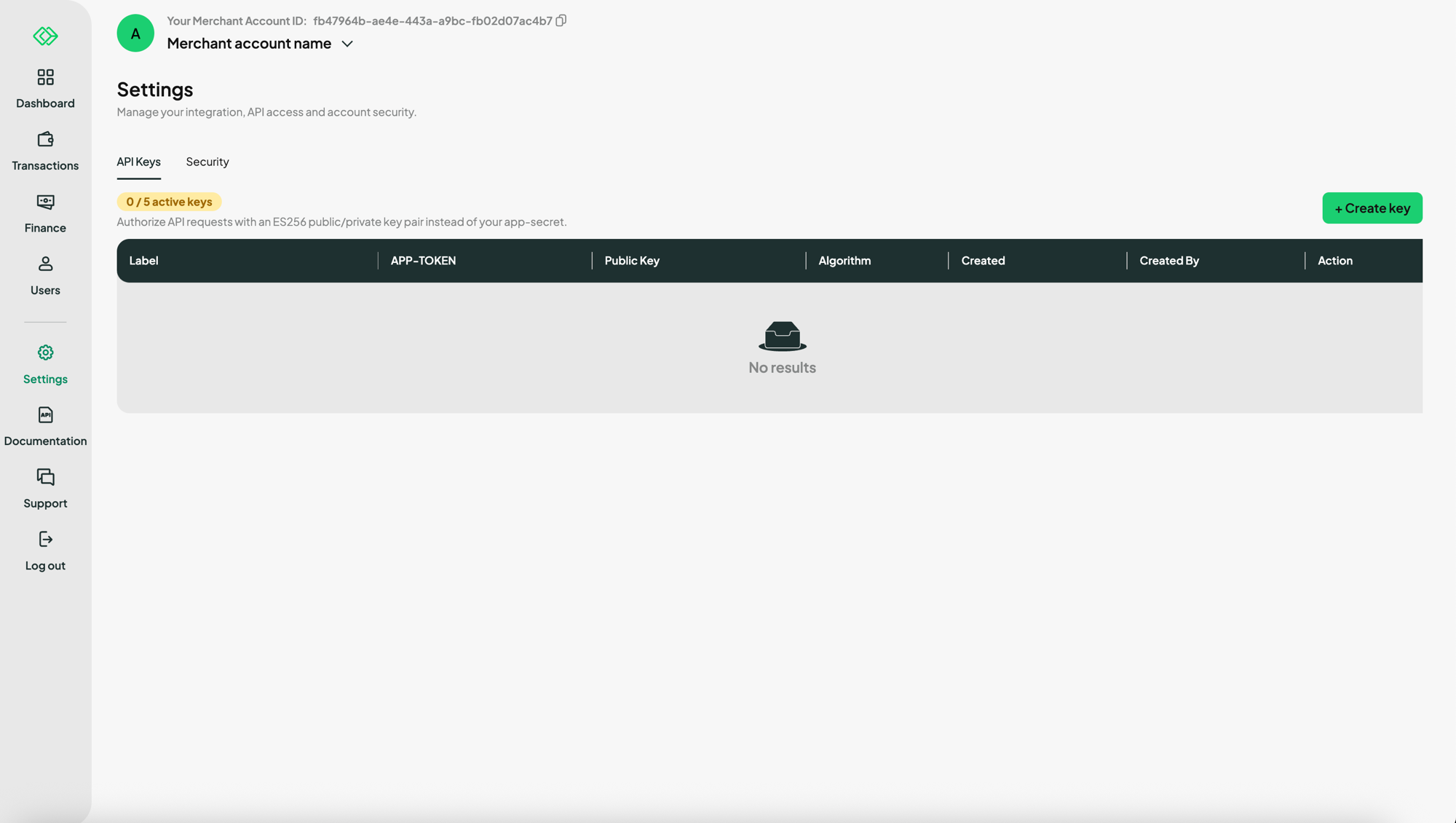
A merchant account can have up to 5 active keys at a time — the page shows this as
X / 5 active keys. -
Paste your public key. In the dialog, optionally give the key a Label (e.g. "Production server 1") to tell keys apart later, then paste the full contents of the
public.pemfile you generated — the-----BEGIN PUBLIC KEY-----block included. The Merchant Portal only accepts ES256 (P-256) keys, matching the algorithm shown in the dialog. Click Continue.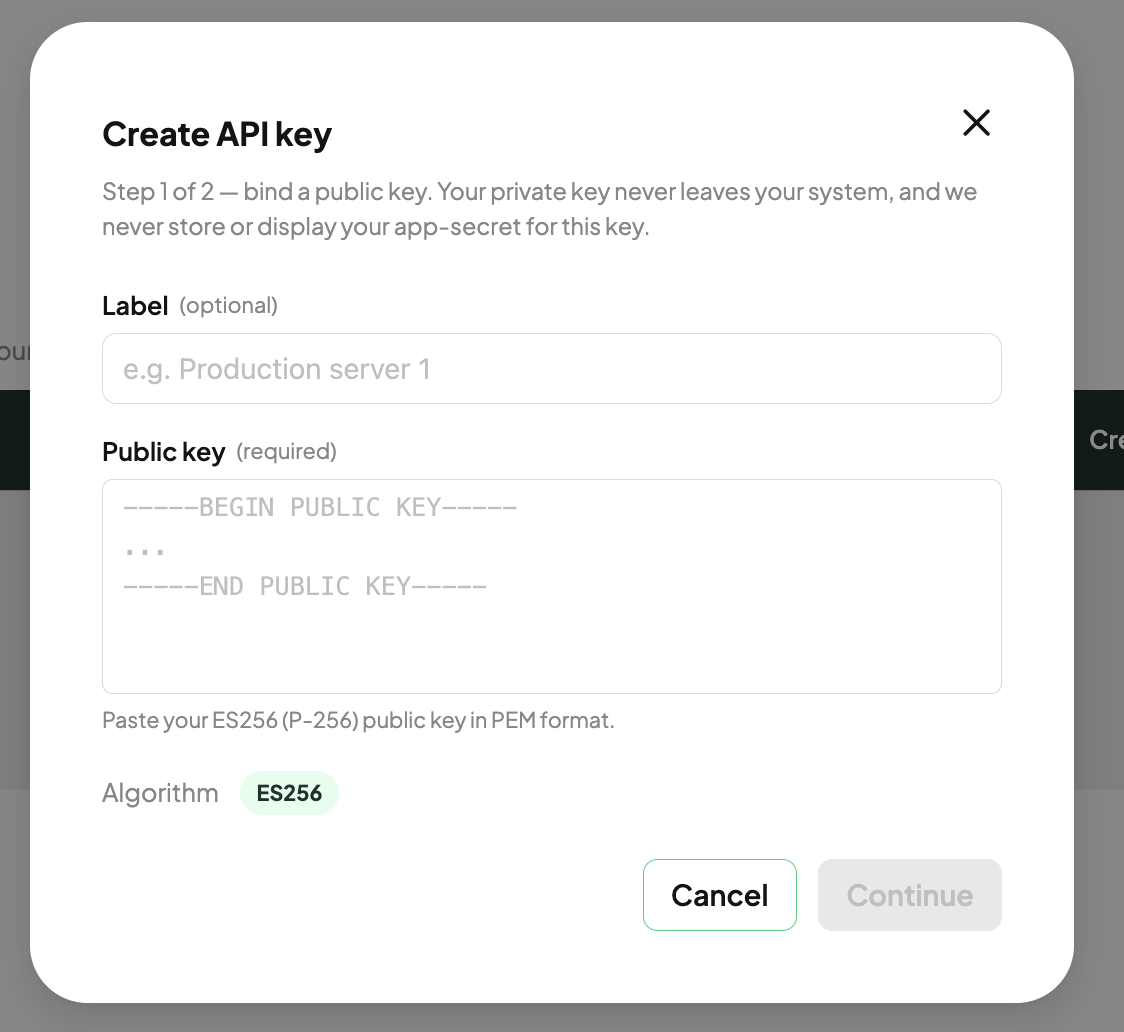
Your private key is never sent here, and the Merchant Portal never asks for or stores an app-secret for this key.
-
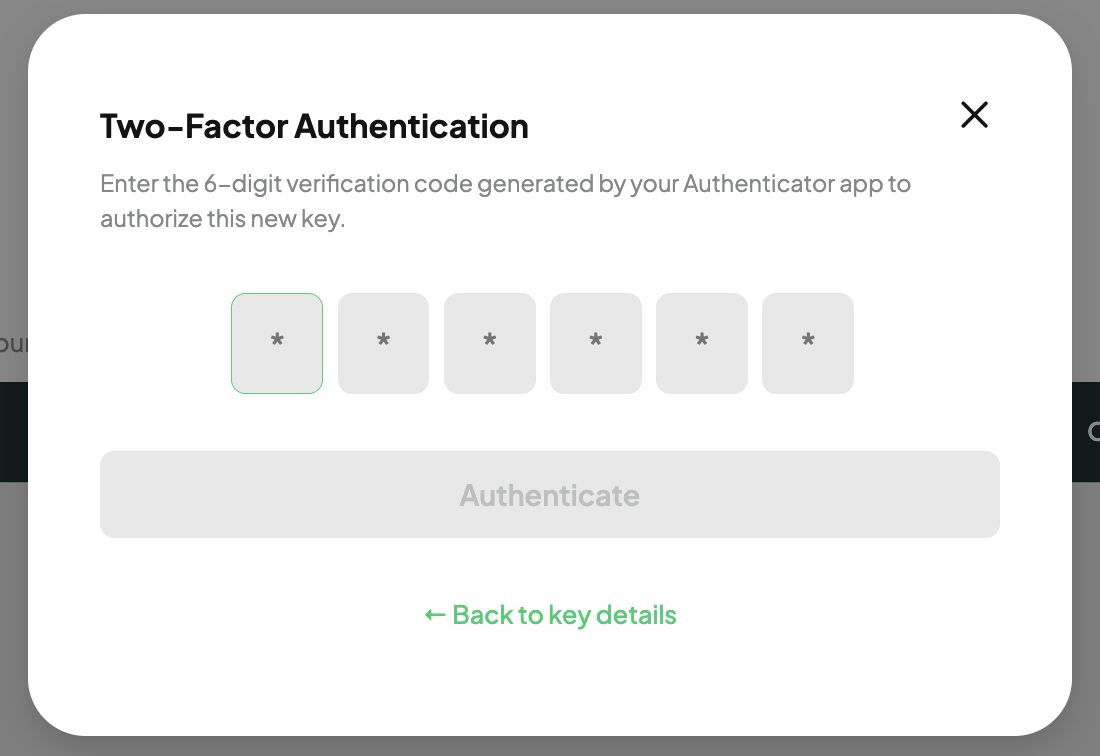
Confirm with 2FA. Adding (or deleting) a public key always requires two-factor authentication, regardless of your role. Enter the 6-digit code from your authenticator app to confirm.
-
Copy your APP-TOKEN. Once confirmed, the key appears in the list together with a new APP-TOKEN — send this in the
X-App-Tokenheader alongside the signature you compute with your private key. The portal never displays or stores an app-secret for this key, only the APP-TOKEN and the public key you uploaded.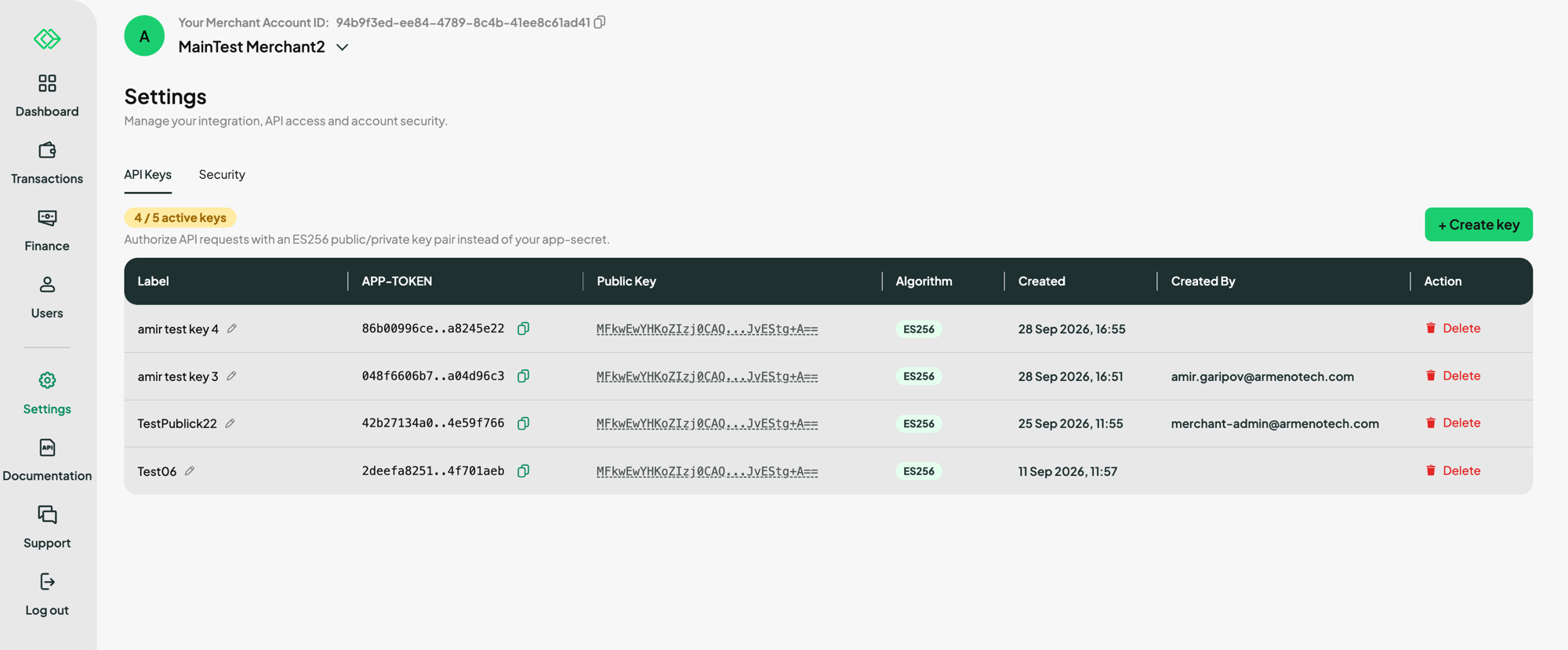
Rotating or removing a key
To rotate a key without downtime, add the new one first, switch your integration over to its APP-TOKEN, then remove the old one from the same list using its Delete action — this also requires 2FA. Deleting a key immediately invalidates its APP-TOKEN; any requests still signing with the corresponding private key will start failing.